-
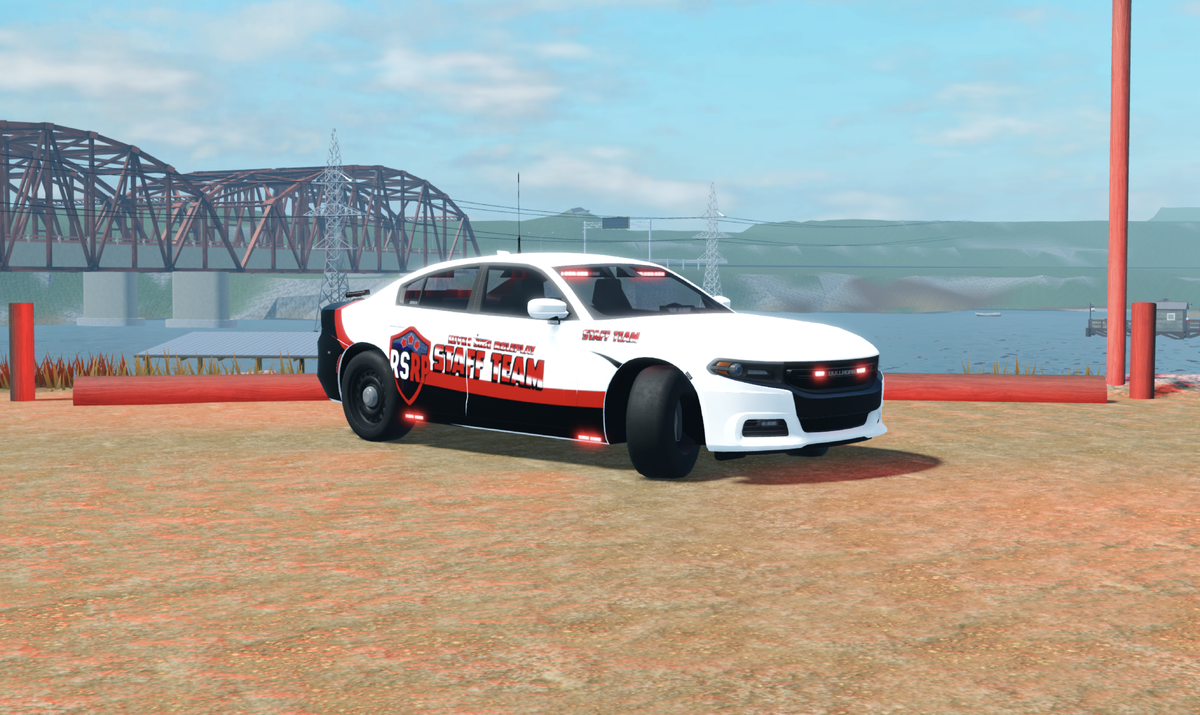
Staff Applications@everyone If you are interested in working for the RSRP Staff Team, please make a ticket or DM me. We are accepting applications from all time zones. We are looking for people with: Good work ethic Professional behavior Activity and dedication Riverside Police DepartmentThe new Police Department Leader is: @1L-01 | 2301 | SS Waddle Effective 5/25/2026 If you are interested in joining staff, feel free to DM me.
-
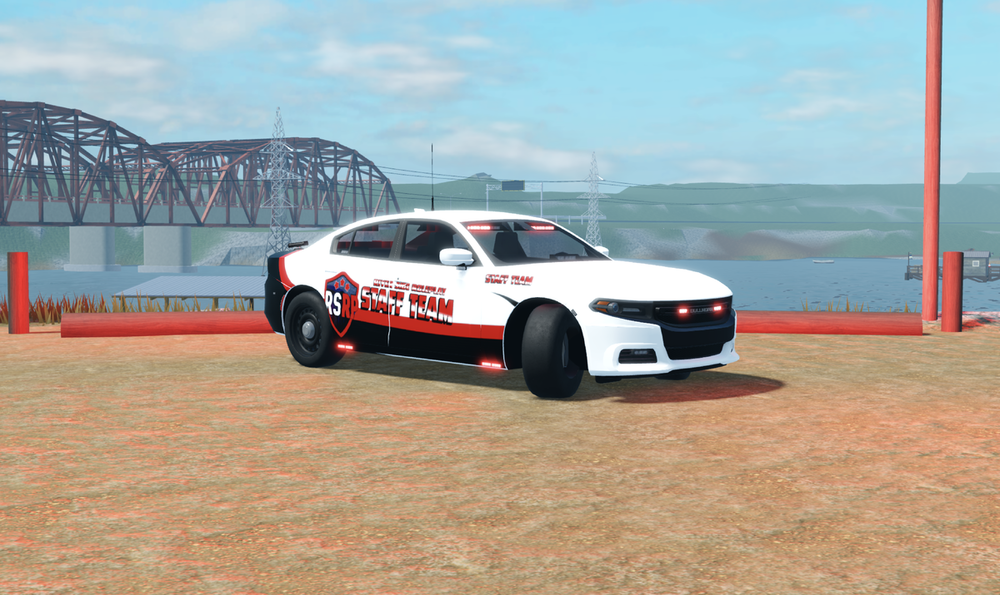
RSRP Community Updates Department of the WeekWe are officially introducing Department of the Week! Departments will now be rewarded for: Being active Providing quality roleplay Community involvement Overall performance Keep an eye out to see who wins the very first award 👀 This will be a weekly reward system. Department Interviews OpenAll departments in RSRP are currently holding interviews and recruiting new members. They are looking for: HR SHR Low ranks General department members Feel free to DM the department leaders below if you are interested in joining Police Department@1L-01 | 2301 | SS Waddle — Leader of PD OSP@!1K-01 | ptps2017 — Leader of OSP Sheriff’s Office@!C-01 | Tim Bradford — Leader of Sheriff (Currently only looking for low ranks) Liveries & UniformsLiveries and uniforms are currently being revamped and will be updated very soon.